
Sale!
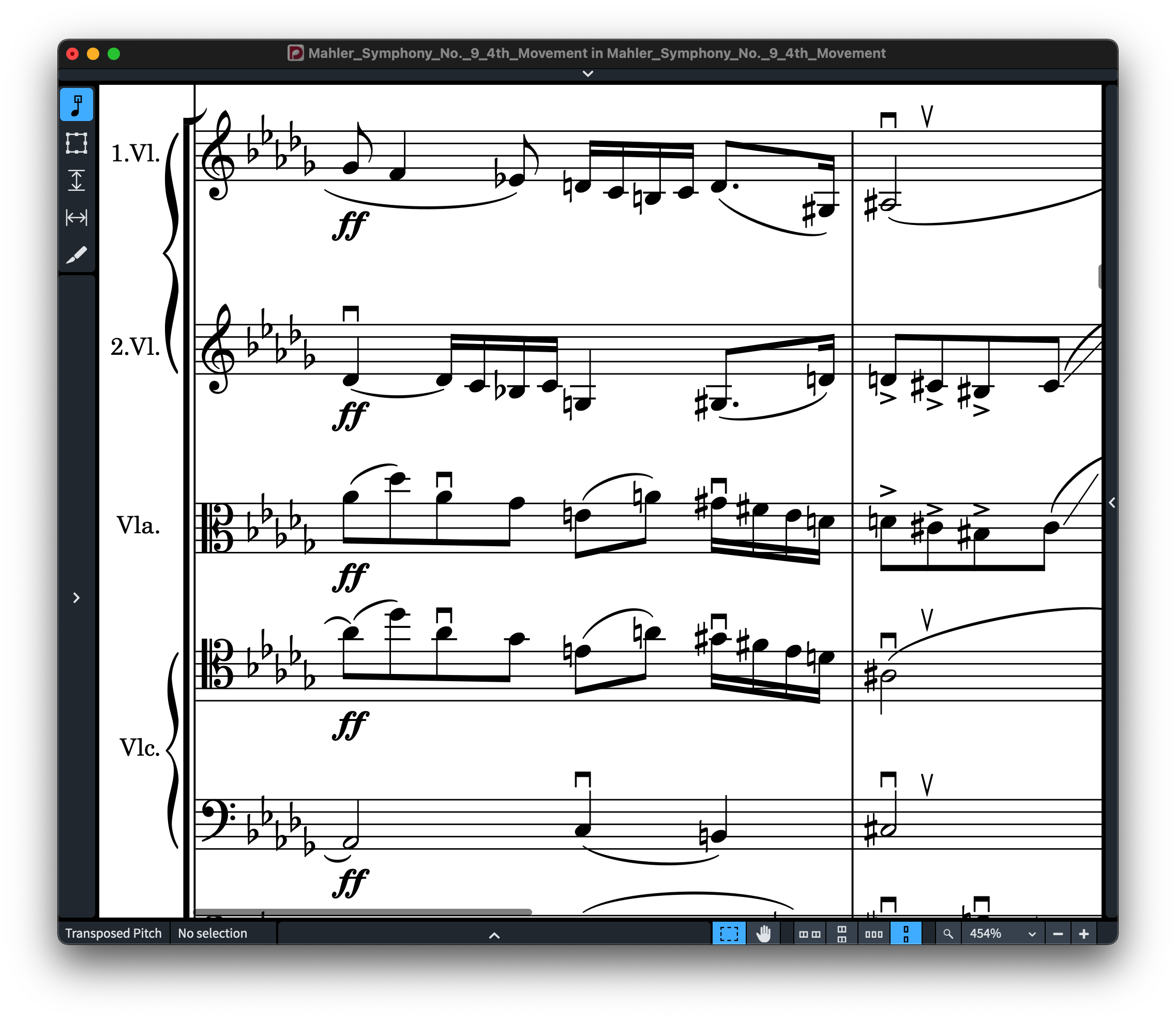
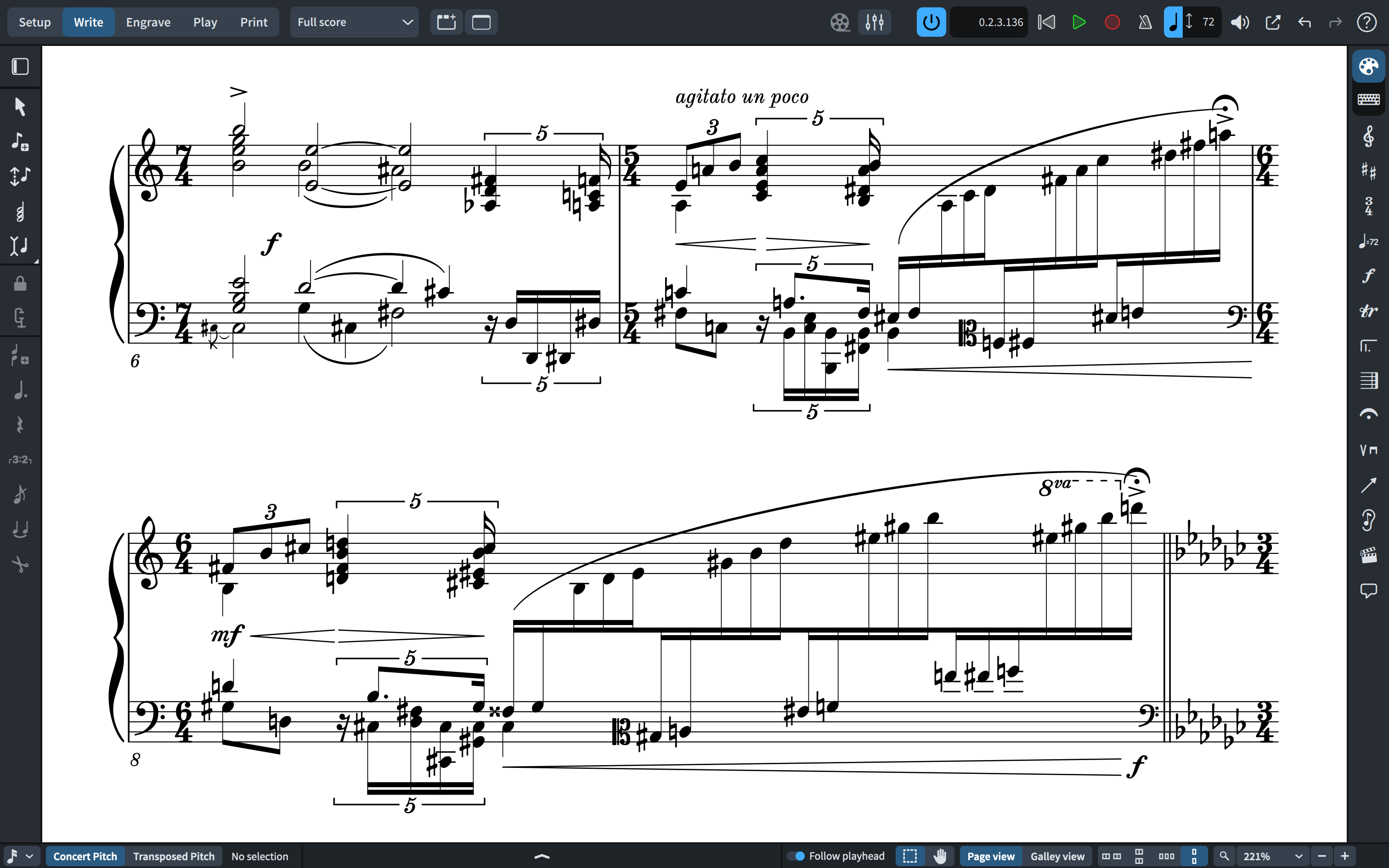
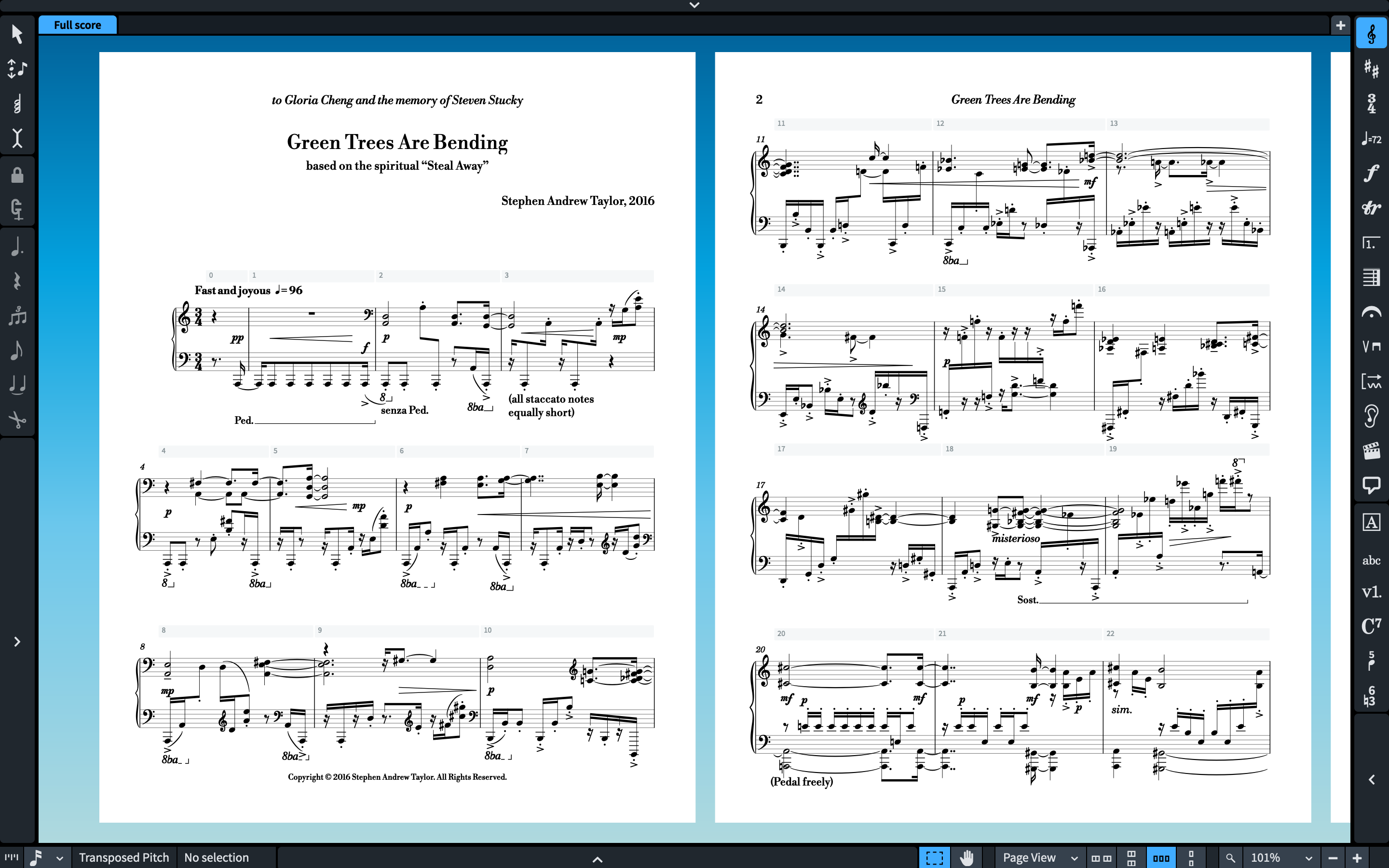
Description [macOS & Windows] DA CAPO FOR DORICO & FINALE V27 FEATURE 2 SMUFL COMPLIANT MUSIC FONTS: “DA CAPO” & “DA CAPO LIGHT”. Da Capo fonts are elegant engraver music fonts with a standard and a lighter appearance, yet more robust than some other music fonts, but more accurately representing the look of smooth engraved music. Da Capo can be used for modern sophisticated Pop or Rock, Jazz Bands, Piano and Vocals, Choirs, Marching Bands, and all types of musical ensembles even Symphonies! Da Capo comes with a unique subtle individuality, but with a softer and fatter look which makes it a great use for school manuals and education materials. Both fonts look fun and easy, and will not scare your students! Da Capo works with Finale v27 and Doricoâ„¢ Pro version as an alternative to Finale Maestro and  Bravura font or any other SMuFL font. PDF SAMPLES Da Capo Music Font – Full score – Green Trees Are Bending Da Capo Light Music Font – Full score – Green Trees Are Bending Da Capo Music Font – Full score – Constellations Da Capo Light Music Font – Full score – Constellations Da Capo Music Font – Full score – Au Tombeau de Rachmaninoff Da Capo Light Music Font – Full score – Au Tombeau de Rachmaninoff Da Capo Music Font – Full score – Dorico Prelude Da Capo Light Music Font – Full score – Dorico Prelude    INSTALLING DA CAPO FONTS It’s easy to install Da Capo fonts since they come with four installers, two installers each for macOS and Windows. Note for macOS users: During installation, you may encounter a popup stating, “…pkg can’t be opened because Apple cannot verify it for malicious software.†To bypass this message, right-click or control-click on the *.pkg file and select “Open†from the context menu. You’ll be presented with a similar message, but this time, you’ll have the option to ignore the warning by clicking the “Open†button. If the message persists, proceed to System Settings > Privacy and Security > Security. Here, you’ll find an “Open anyway†option for the pkg installer displayed. APPLYING DA CAPO FONTS IN DORICOâ„¢ PRO When running Dorico, it will find the new metadata files and will make an entry for the fonts in its list of available SMuFL fonts. However, to use the Da Capo fonts: Open a Dorico score, Go to Engrave mode (Ctrl 3 or Cmd 3), click on the Engrave > Music Fonts menu option, In the dialog window that appears, click on the name of the font in the list, then click the button “Change Music Fontâ€Â and select Da Capo or Da Capo Light to apply the font to your open score project Again, Engrave > Font Styles… > Font Style to “Default Music Text Fontâ€Â choose: Da Capo Text or Da Capo Light Text You’d need also to change the character style: Engrave > Character Styles… > set Font to Da Capo Text or Da Capo Light Text You can optionally check or uncheck the box to use the recommended engraving options; click “OKâ€, and you’ll notice that your score project is taking effect of the changes with the newly selected Da Capo/Da Capo Light font.  Changing the Music Font in Finale v27 Go to Document > Set Default Music Font… select Da Capo or Da Capo Light font and click OK. IMPORTANT NOTE: Stems connections can be misaligned after converting the default music font to a SMuFL-based font, for more info on how to fix this issue click here. Â
Related products
-
-
-
Sale!
-
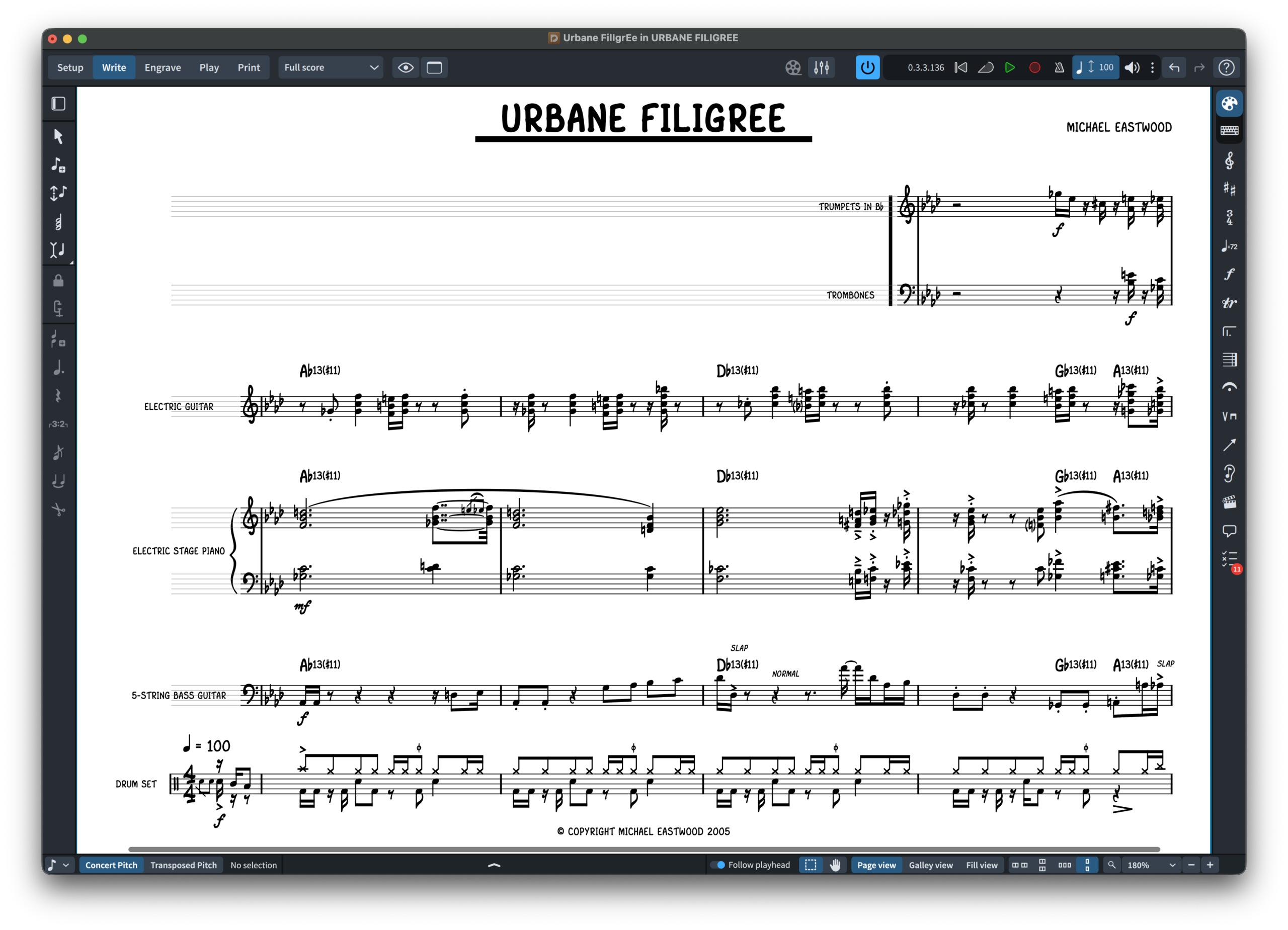
 All Sibelius Legacy Handwritten Bundle — 30% Off $ 95.71 Select options This product has multiple variants. The options may be chosen on the product page